Free learning paths
Master System Design
from zero to production.
Three structured paths. 3 courses. 135+ chapters. Always free.
3
PATHS
135
CHAPTERS
Free
ALWAYS
Start learning now
Introduction to System Design
42 chapters · jump in below, no sign-up required.
Chapter 1 · Fundamentals of Computers
How Computers Work
How Computers Work
🎯 Challenge 1: The Mystery Machine
Imagine this scenario: You press a key on your keyboard, and within milliseconds, a letter appears on screen. Your computer downloaded a file from across the world. It's playing music, showing videos, and running multiple programs simultaneously.
Pause and think: How does a machine made of metal, silicon, and electricity perform such complex tasks? What are the essential parts that make this possible?
🎭 The Big Picture: Your Computer is Like a City
Before diving into technical details, let's understand computers through a familiar analogy:
A COMPUTER = A BUSTLING CITY
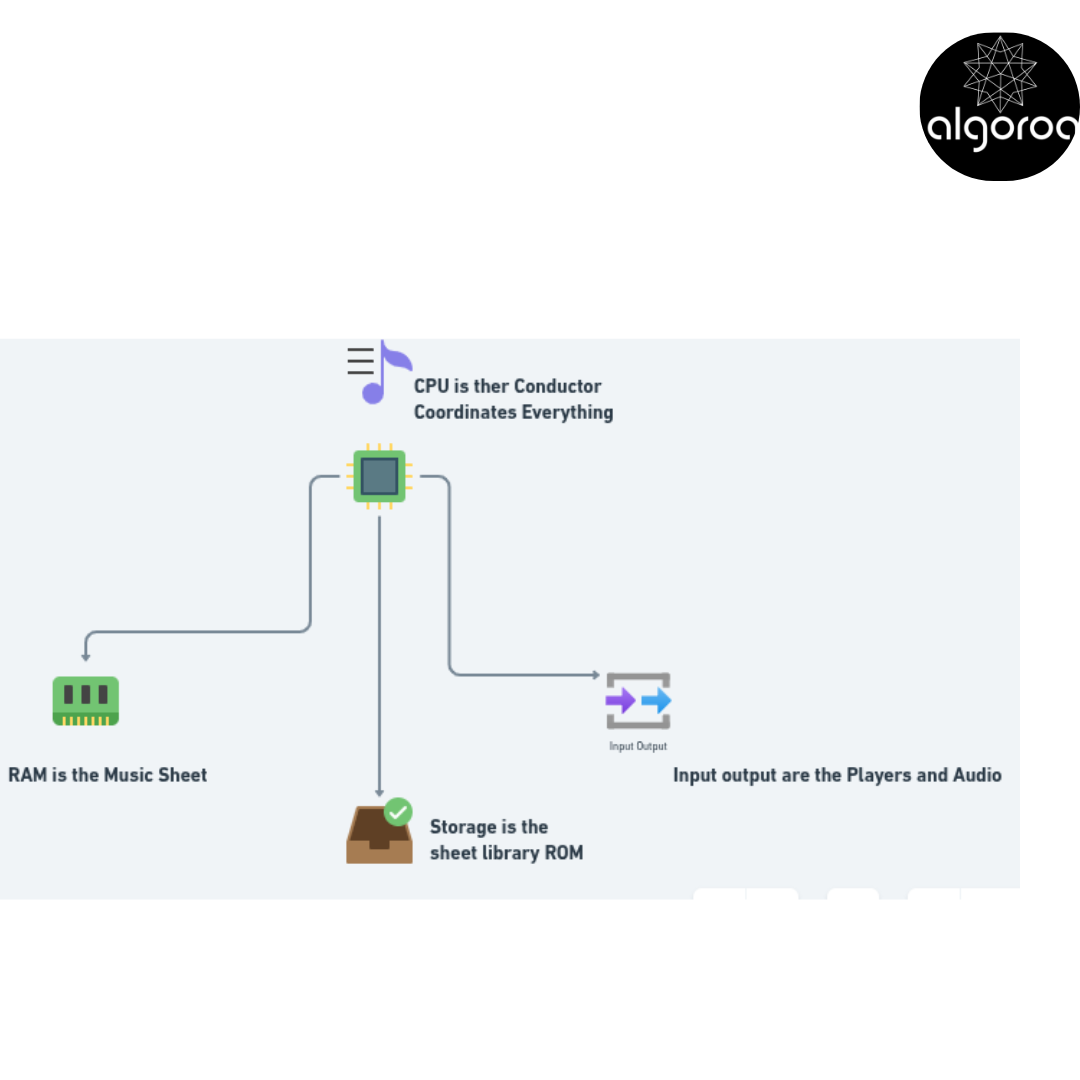
🧠 CPU (Central Processing Unit) = City Government / Mayor's Office Makes all the decisions and coordinates everything
💾 RAM (Random Access Memory) = Office Desks / Workspaces Temporary workspace for active projects
💿 Storage (Hard Drive / SSD) = City Archives / Libraries Long-term storage of all information
🖱️ Input Devices (Keyboard, Mouse) = Citizens submitting requests Ways to communicate with the city
🖥️ Output Devices (Monitor, Speakers) = City Announcements / Billboards How the city communicates back to you
🚌 Bus / Motherboard = Roads connecting everything Pathways for information to flow
Key insight: Just like a city needs government, workspace, archives, citizens, and roads to function, your computer needs all these components working together!
🏗️ Interactive Exercise: The Four Essential Components
Every computer, from smartphone to supercomputer, has four fundamental parts. Let's explore each:
a. THE CPU - The Brain (Decision Maker)
🧠 WHAT THE CPU DOES:
Think of it as a chef in a kitchen:
Your request: "Make a sandwich"
CPU's job: -
Step 1. Read the recipe (fetch instruction)
Step 2: Understand what to do (decode instruction)
Step 3: Get ingredients from fridge (fetch data)
Step 4: Execute the steps (process)
Step 5: Serve the sandwich (output result)
The CPU does this BILLIONS of times per second!
Modern CPU (2025):
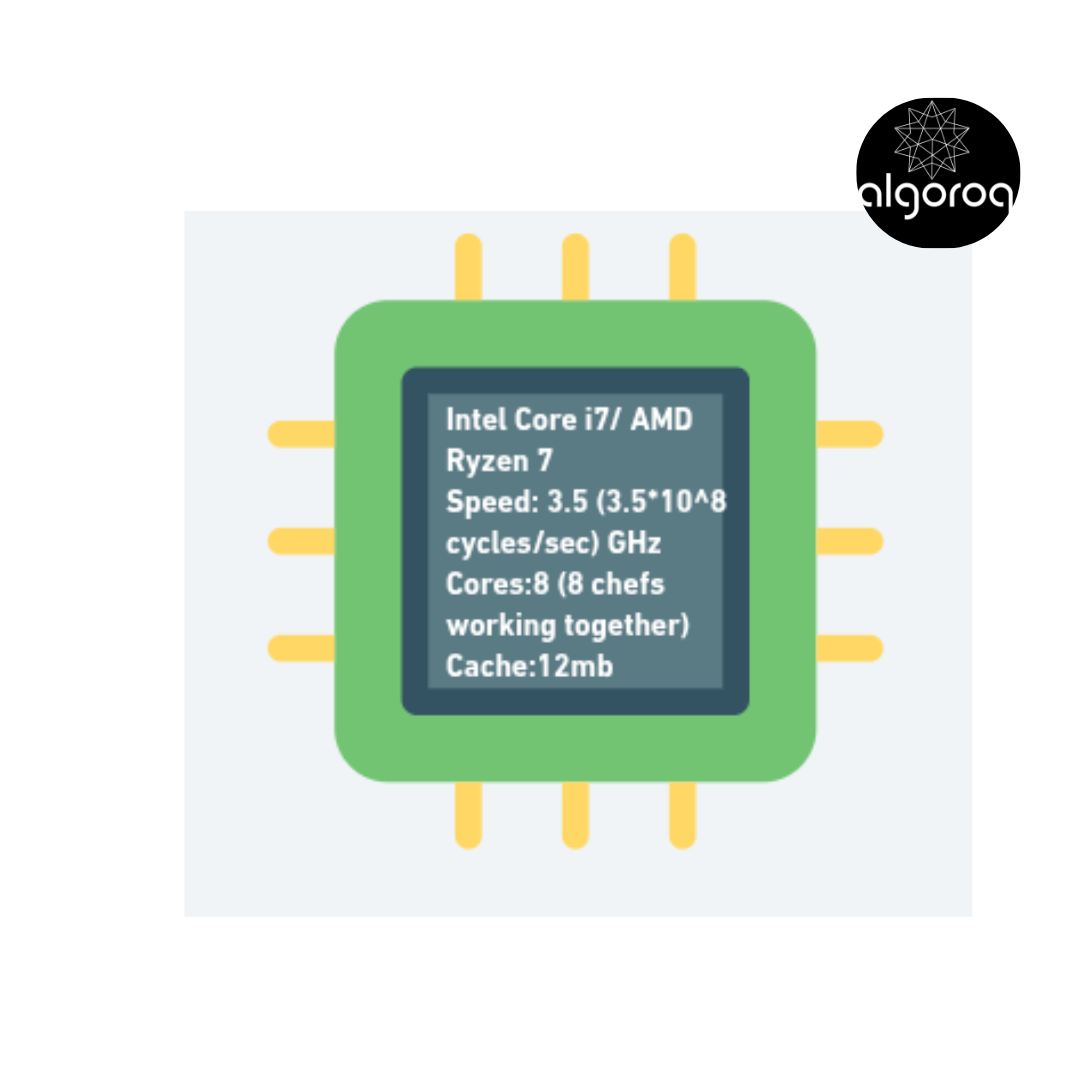
Real-world example:
- Opening Chrome = CPU executes millions of instructions
- Playing a game = CPU coordinates graphics, physics, AI
- Typing this sentence = CPU processes every keystroke
b. RAM - The Workspace (Active Memory)
💾 WHAT RAM DOES:
Think of it as your desk workspace:
Initially empty desk (Computer off):
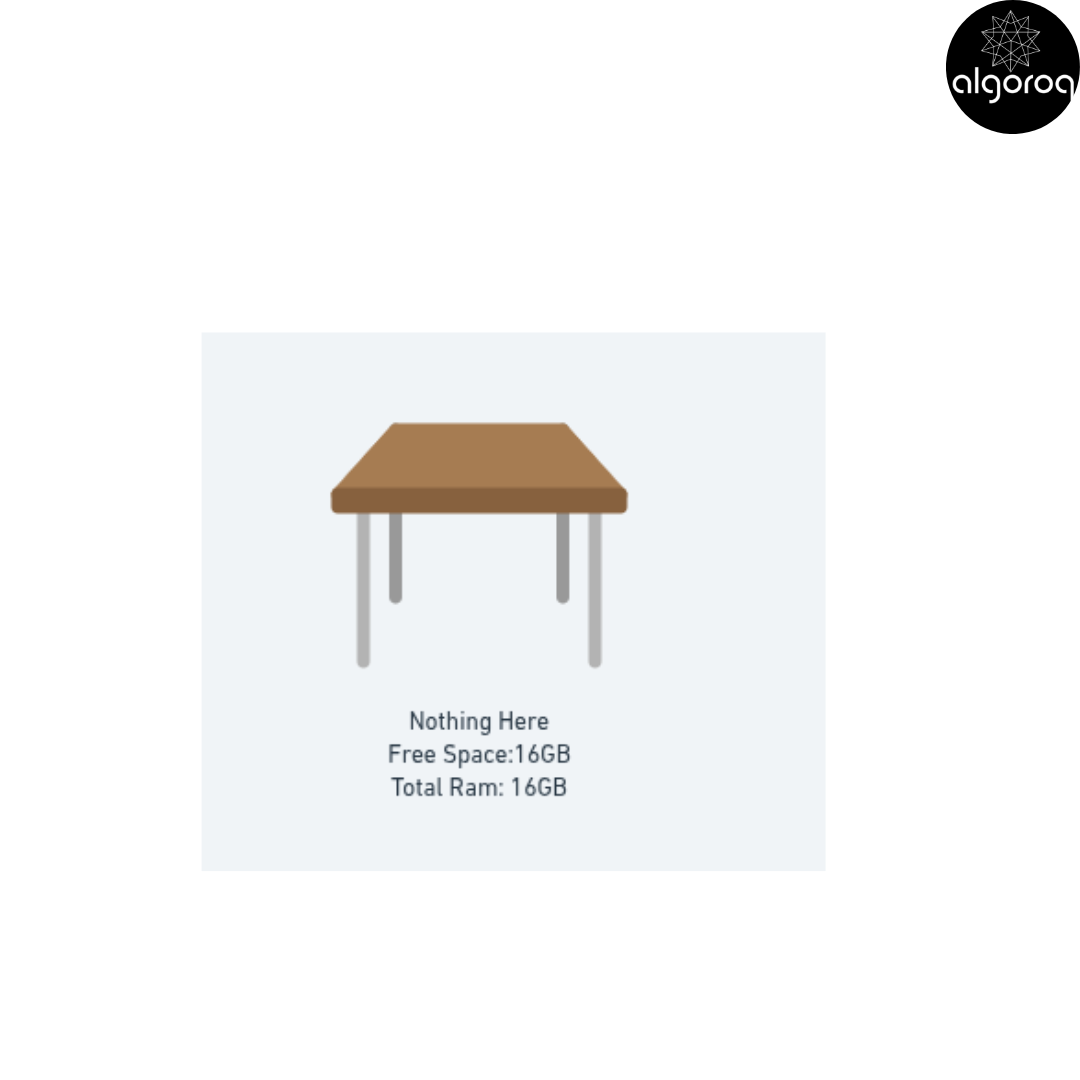
Working desk (Computer on with apps open):
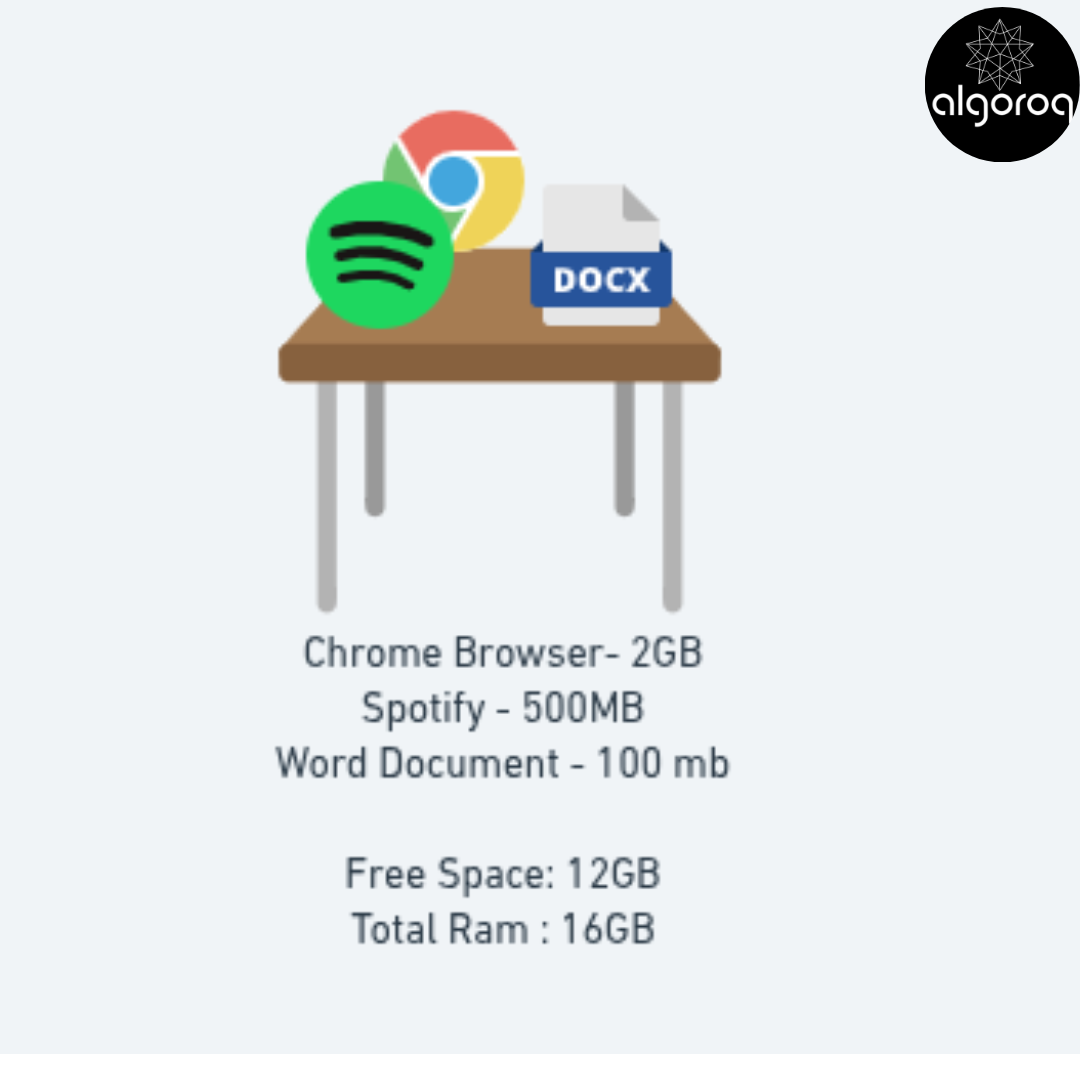
Close Chrome (2GB freed):
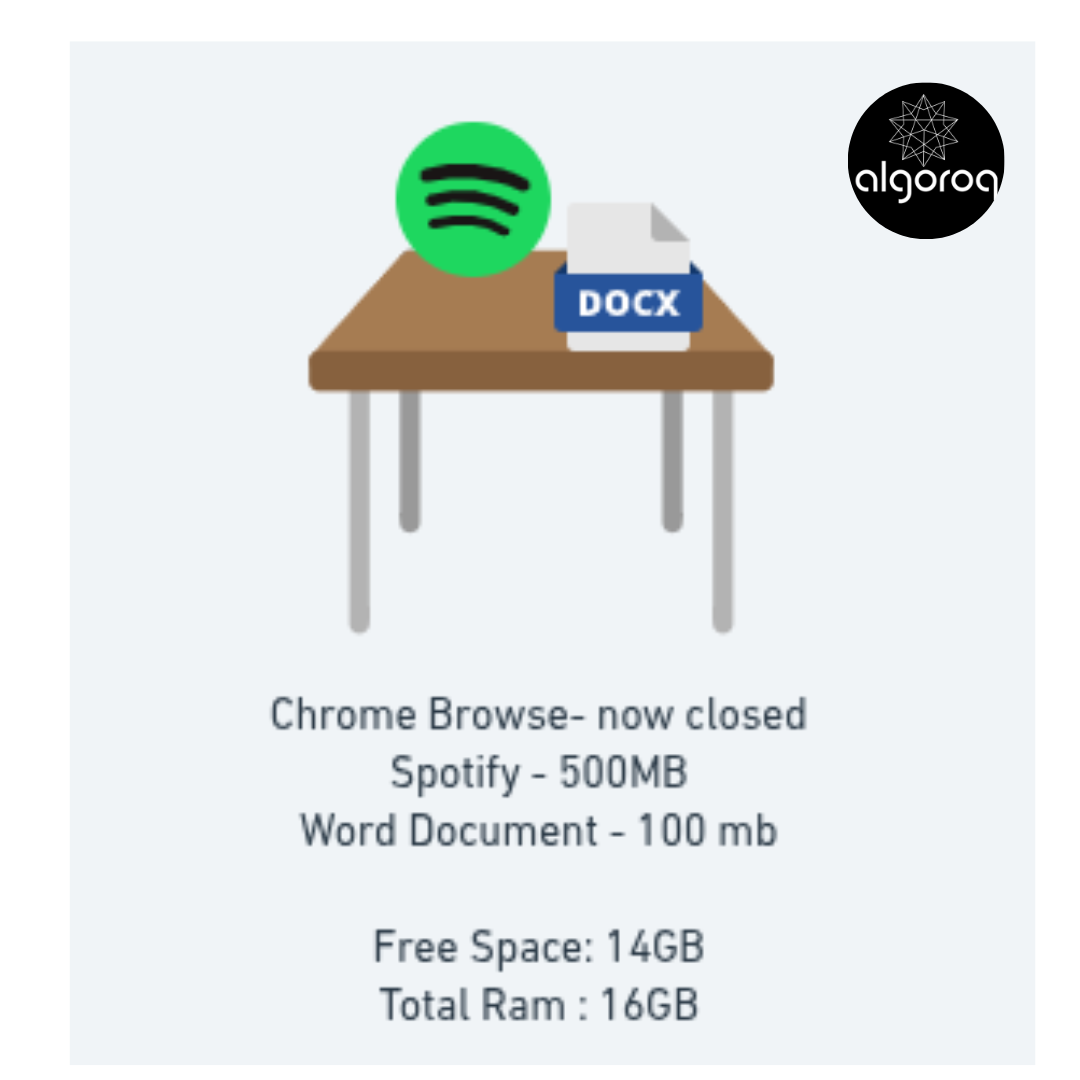
Key characteristics:
- ⚡ Fast: Access any data in nanoseconds
- 🔄 Volatile: Loses everything when powered off
- 💰 Expensive: Costs more per GB than storage
- 📏 Limited: 8GB, 16GB, 32GB typical sizes
Mental model: RAM is like a desk - fast to access, but cleared when you leave!
c. STORAGE - The Library (Long-term Memory)
💿 WHAT STORAGE DOES:
Think of it as a library or filing cabinet:
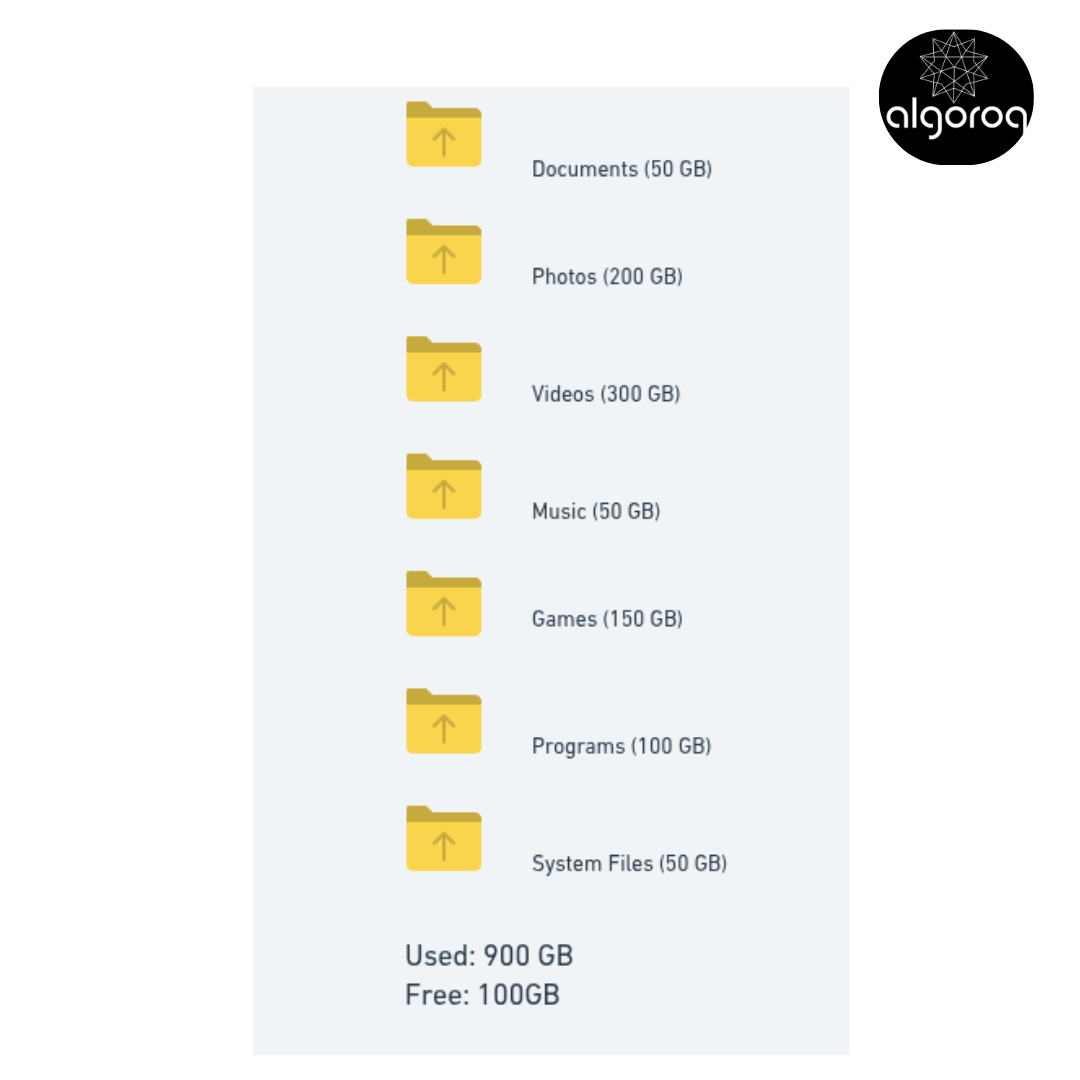
Your 1TB Storage:
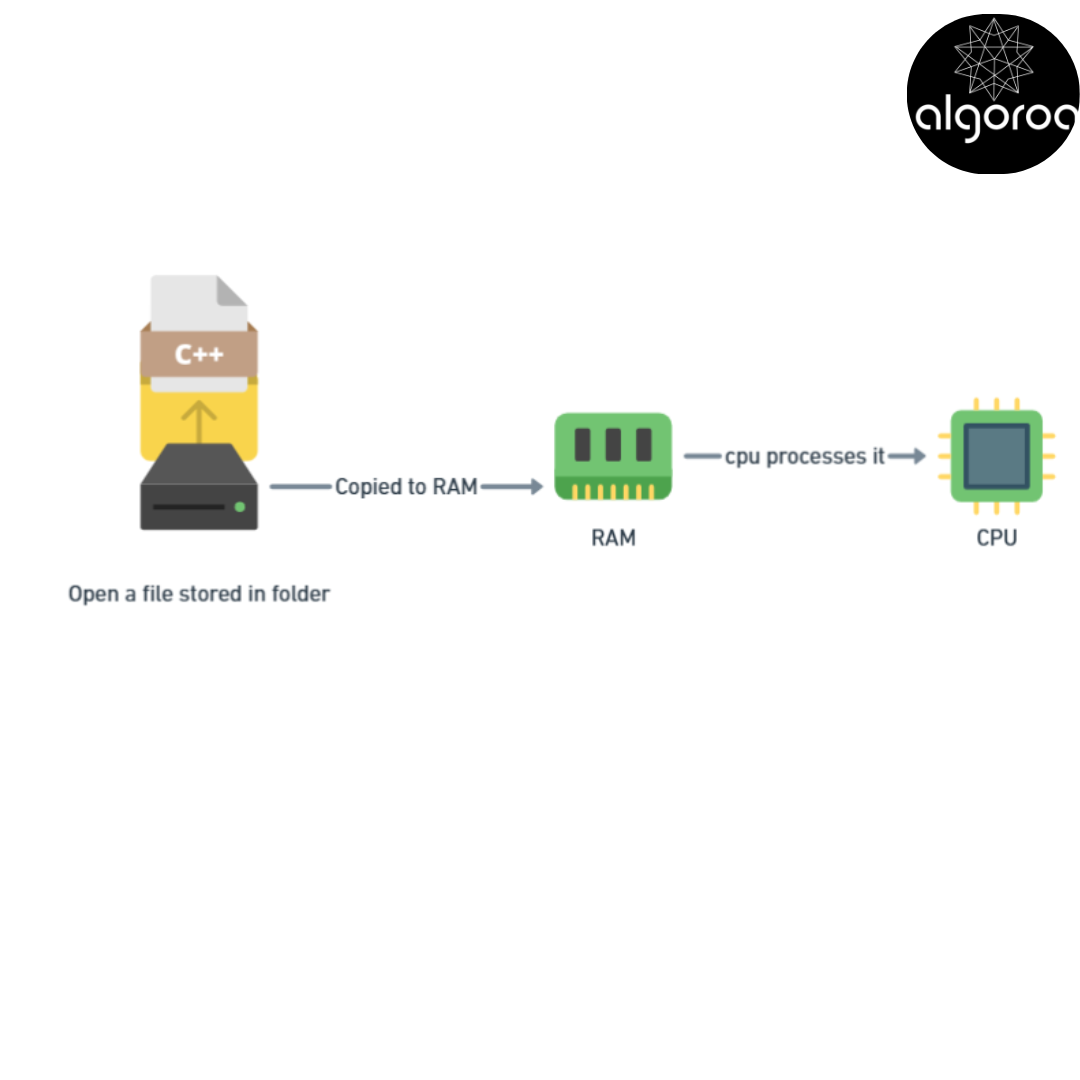
When you open a file: Storage → Copied to RAM → CPU processes it
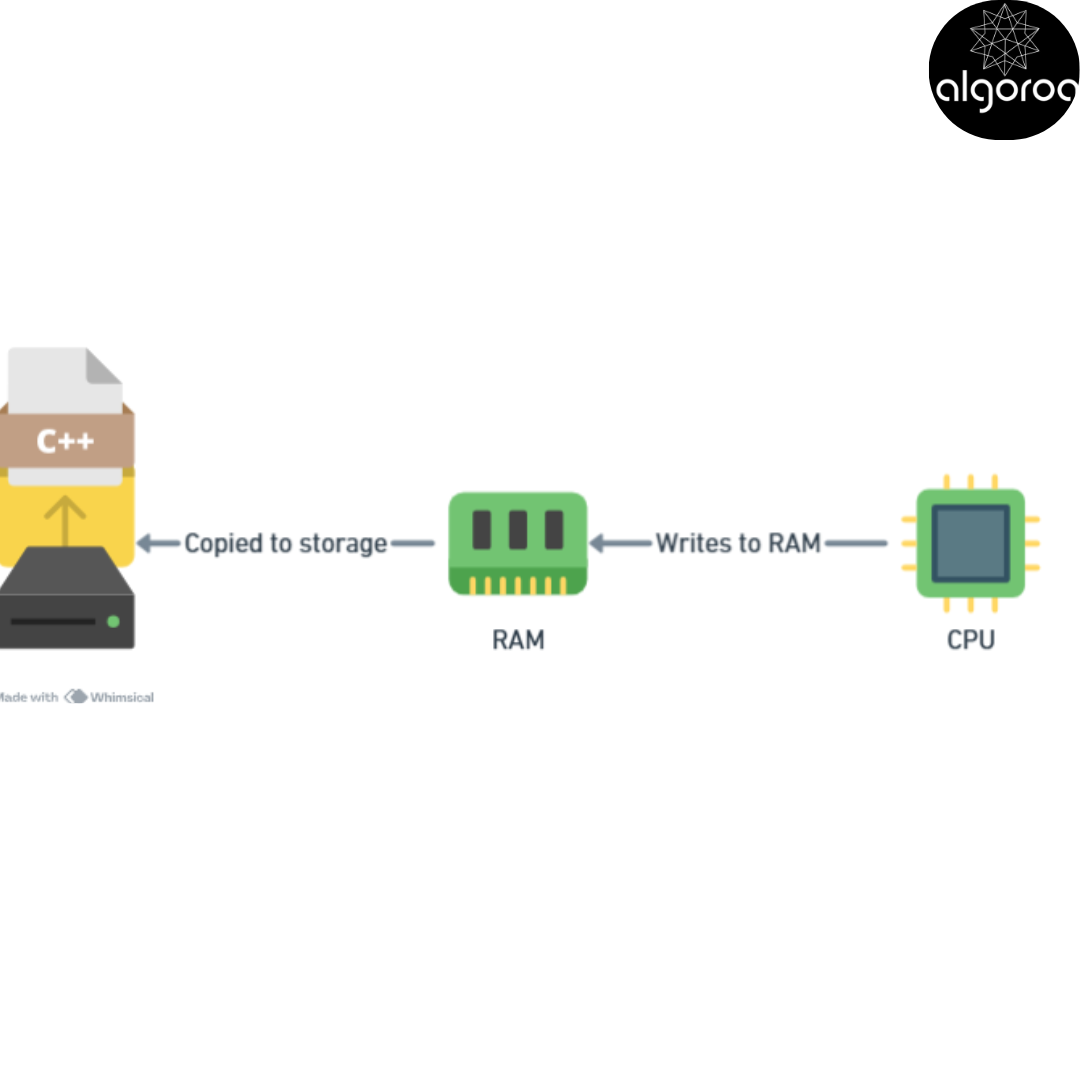
When you save: CPU → Writes to RAM → Copied to Storage
When you power off: Storage: ✅ Keeps everything RAM: ❌ Loses everything
Key characteristics:
- 🐢 Slower: Milliseconds to access data
- 💾 Persistent: Keeps data when powered off
- 💵 Cheaper: Much more GB per dollar
- 📦 Large: 512GB, 1TB, 2TB+ common
Mental model: Storage is like a warehouse - holds lots of stuff, but takes time to retrieve!
d. INPUT/OUTPUT - The Communication System
🔄 HOW YOU INTERACT WITH THE COMPUTER:
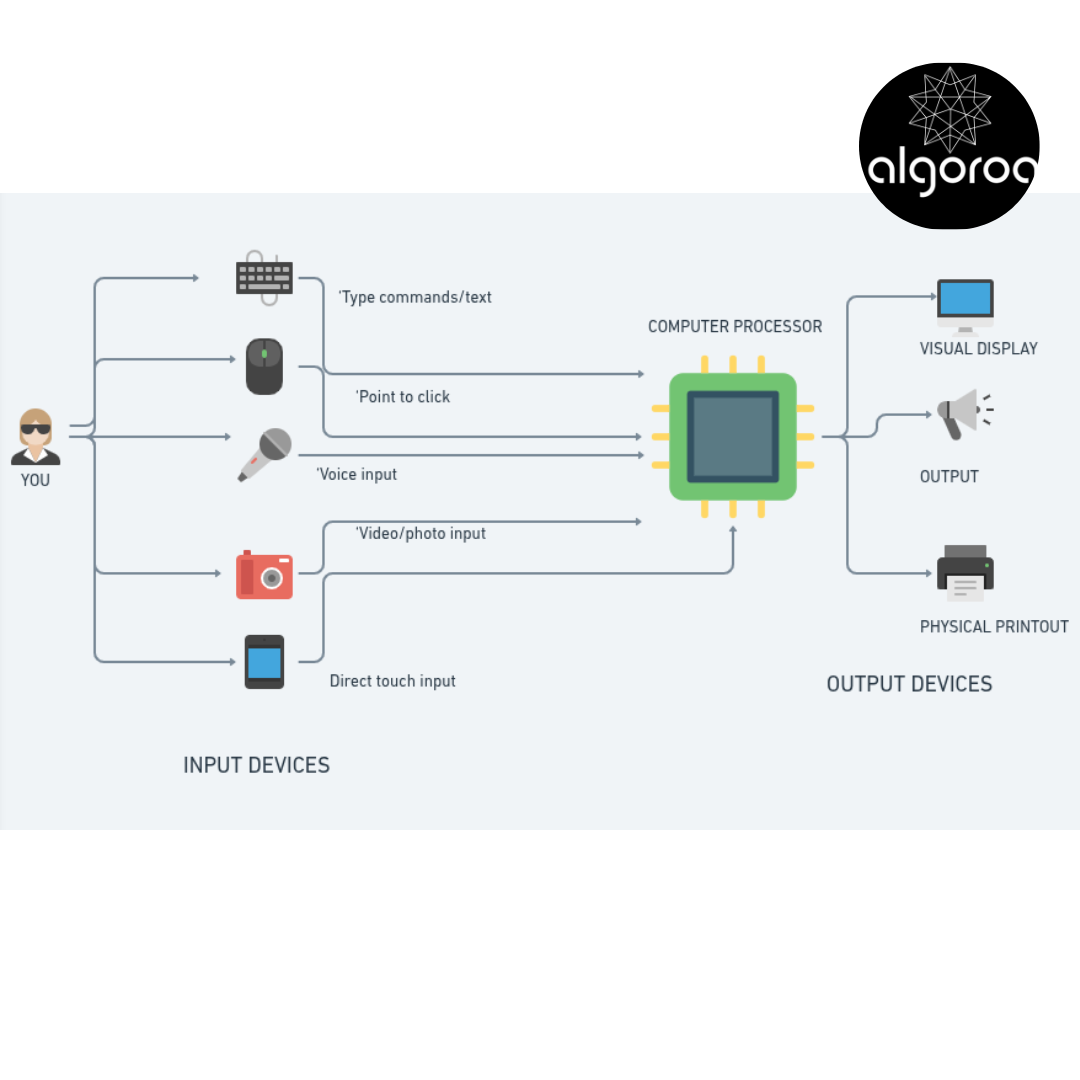
The I/O Journey:
Example: Opening a photo
-
INPUT: You: Double-click photo.jpg (mouse input)
-
PROCESSING: CPU: "Open photo.jpg command received" Storage: Reads photo.jpg (10 MB) RAM: Loads photo into memory CPU: Decodes JPEG format
-
OUTPUT: Monitor: Displays the beautiful image!
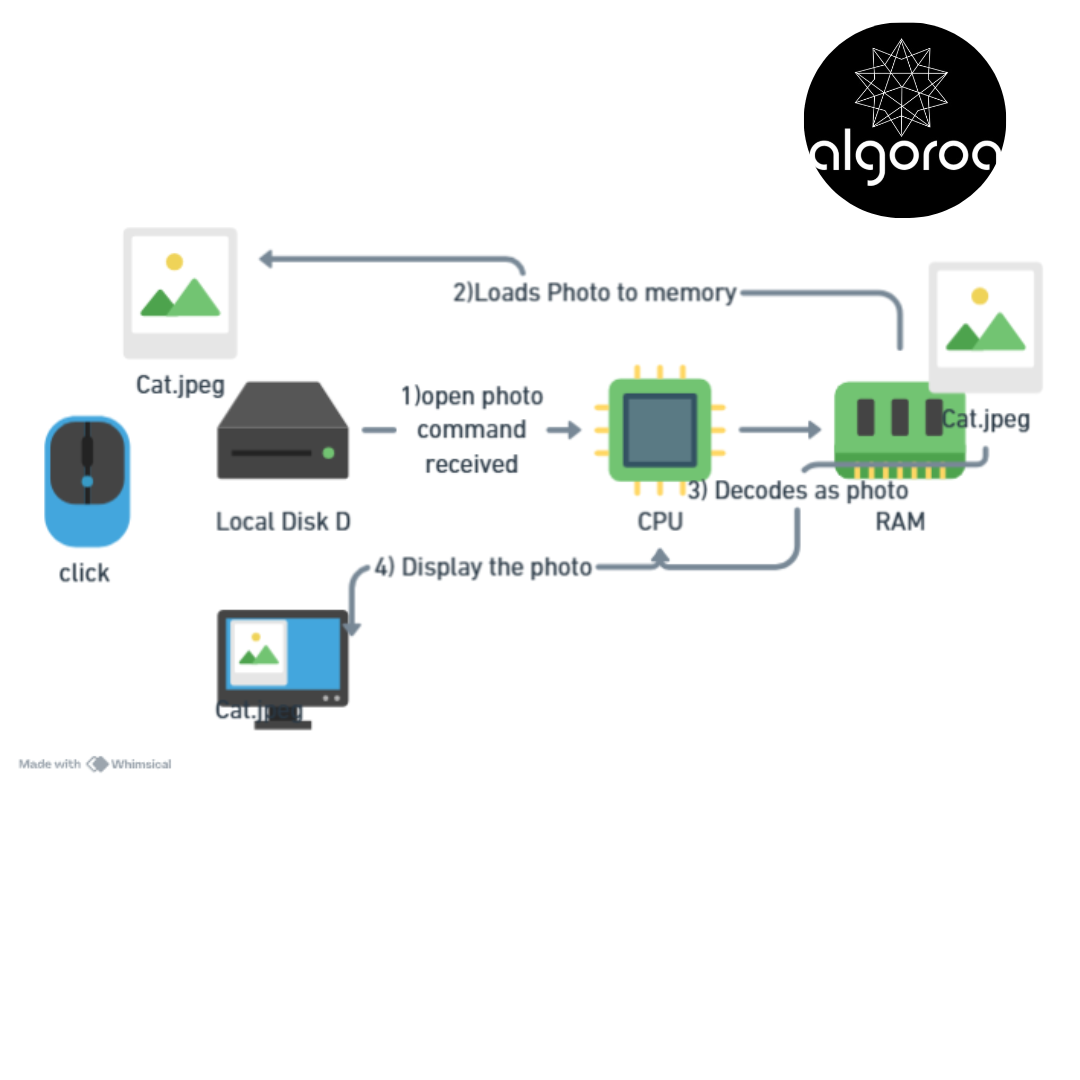
Total time: ~100 milliseconds (Feels instant to you!)
🎮 Interactive Journey: Following Data Through the System
Let's trace what happens when you open Netflix and play a video:
STEP-BY-STEP DATA JOURNEY:
📍 STEP 1: You click "Play" Input: Mouse → CPU
[Mouse] → [CPU receives click event]
📍 STEP 2: CPU processes request CPU: "User wants to play video" CPU: "Check if Netflix is in RAM"
[CPU checks] → [RAM has Netflix app ✓]
📍 STEP 3: CPU requests video data CPU → Internet → Netflix servers
[CPU] → [Network card] → [Internet] → 🌐
📍 STEP 4: Video data arrives Network → RAM (buffering)
🌐 → [RAM buffer: 00000000 Loading... 10 MB]
📍 STEP 5: CPU decodes video RAM → CPU → Processes compressed video CPU: Decompresses, decodes frames
[Compressed data] → [CPU] → [Raw video frames]
📍 STEP 6: Play audio CPU → Sound Card → Speakers
[Audio data] → [Audio processing] → [Speakers 🔊]
ALL OF THIS HAPPENS 60 TIMES PER SECOND! 🤯 (That's 60 frames per second for smooth video)
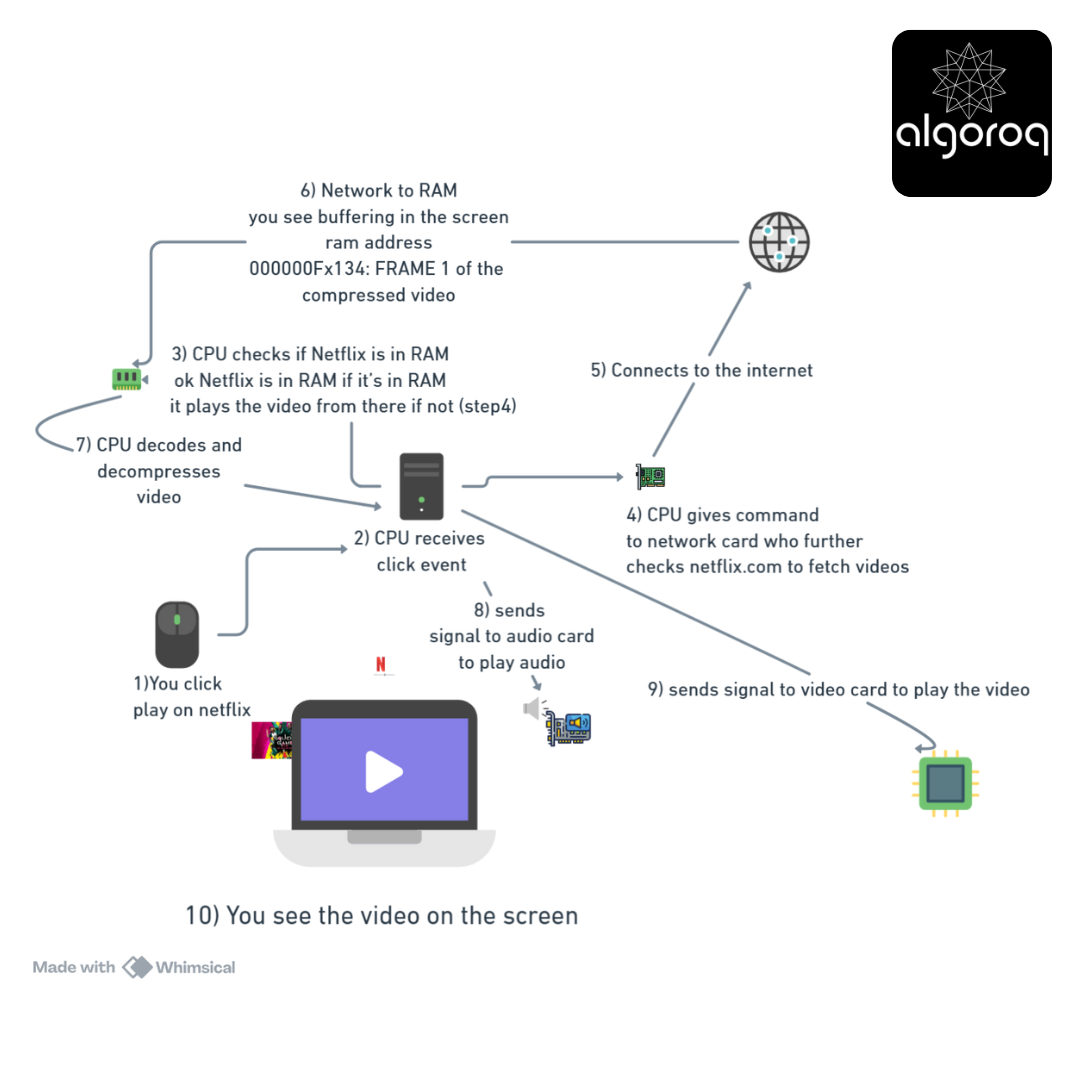
Mental Model: It's like a relay race where data is the baton, passed between different parts of the system!
🚨 Common Misconception: "More RAM = Faster Computer"
You might think: "I'll just add more RAM and everything will be faster!"
The Reality: It's more nuanced!
❌ WRONG UNDERSTANDING: "32GB RAM will make my computer 2x faster than 16GB!"
✅ CORRECT UNDERSTANDING:
Scenario A: You have 8GB RAM,
You use 7.5GB
i) Your RAM is 95% full
ii) Computer uses slow disk swap
iii) Result: VERY SLOW! 🐌
Now you Upgrade to 16GB:
i) Now your RAM is 47% full
ii) Everything fits in RAM
iii) Result: MUCH FASTER! 🚀
Scenario B: You have 16GB RAM, use 8GB
i) Your RAM is 50% full
ii) You have Plenty of room
iii) Final Result Result: Fast ✓
Upgrade to 32GB:
i) Your RAM is 25% full
ii) You have extra RAM but just sits empty
iii) Result: Same speed (no improvement) 😐
THE RULE: More RAM helps IF you're running out. More RAM does nothing IF you already have enough.
Better analogy:
- RAM = Desk size
- Too small desk = Papers fall off, you work on floor (slow!)
- Right size desk = Everything fits, you work efficiently
- Huge desk = Extra space sits empty, doesn't make you faster
🏗️ The Complete System: How It All Works Together
THE COMPUTER ORCHESTRA
🎯 Quick Self-Test: Component Matching
Match each task to the component primarily responsible:
Tasks: A. Stores your vacation photos permanently B. Executes the calculation 2 + 2 C. Holds the Netflix app while it's running D. Displays this text you're reading E. Receives your keyboard typing F. Connects all components together
Components:
- CPU
- RAM
- Storage
- Input Device
- Output Device
- Motherboard
Think about each one...
ANSWERS:
A → 3 (Storage) - Permanent photo storage
B → 1 (CPU) - Performs calculations
C → 2 (RAM) - Active apps live here
D → 5 (Output Device - Monitor)
E → 4 (Input Device - Keyboard)
F → 6 (Motherboard) - The circuit board connecting everything
Key Takeaways
- Computers process everything as binary (0s and 1s) — every image, video, and text is ultimately a sequence of electrical signals
- The CPU, memory, and storage work together in a hierarchy — CPU registers are fastest, RAM is volatile working memory, disk is persistent
- Input → Processing → Output is the fundamental computing model — understanding this helps you reason about system bottlenecks
- All software is an abstraction over hardware — operating systems, languages, and frameworks all sit on top of physical components